Student Help Center
How can I join the live study session on Zoom?
To join the live study session on Zoom, follow these steps:
1. Go to the invite link from the live study session email that’s sent 24 hours before the session from studenthelp@essentialed.com.

2. Click the yellow button that says “Join the study session.”

3. A prompt will appear on your screen to launch the meeting:
A. If you already have the Zoom app installed, click the “Open Zoom Meetings.”
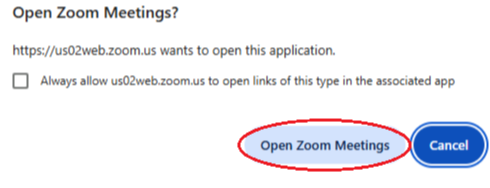
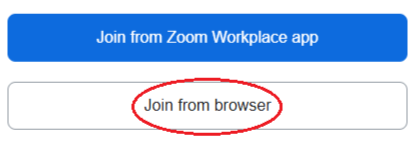
B. If you don’t have the Zoom app installed, click the “Cancel” button from the prompt and select “Join from browser.”
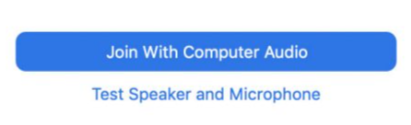
4. Choose your audio and video settings. For example, click “Join with Computer Audio.”
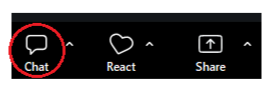
5. Once the host admits you to the live study session, you can chat with everyone in the group by clicking on the “Chat” button at the bottom of the screen.
Tips for the Live Study Sessions
You don’t need a Zoom account to join the live study sessions.
The live study session information and sign-on link will be emailed to you 24 hours before the session.
If you signed up for the live study session within 24 hours of the session, you will receive an email with the link immediately.
The Zoom meeting link can be sent to you via text message, too. If you would like a text reminder 30 minutes before the live study session, sign up here.
You can join the live study sessions via Zoom using any device that connects to the internet - including a phone, tablet, or laptop.
You don’t need to have the Zoom app downloaded to join the meeting; you can always join from your web browser.
To download the Zoom application, visit the Zoom download center here.
For help with joining the meeting, please call or text (800) 460-8150.
Related Topics
What are the live study sessions?
How can I enroll in Essential Education?
How can I find extra study resources?